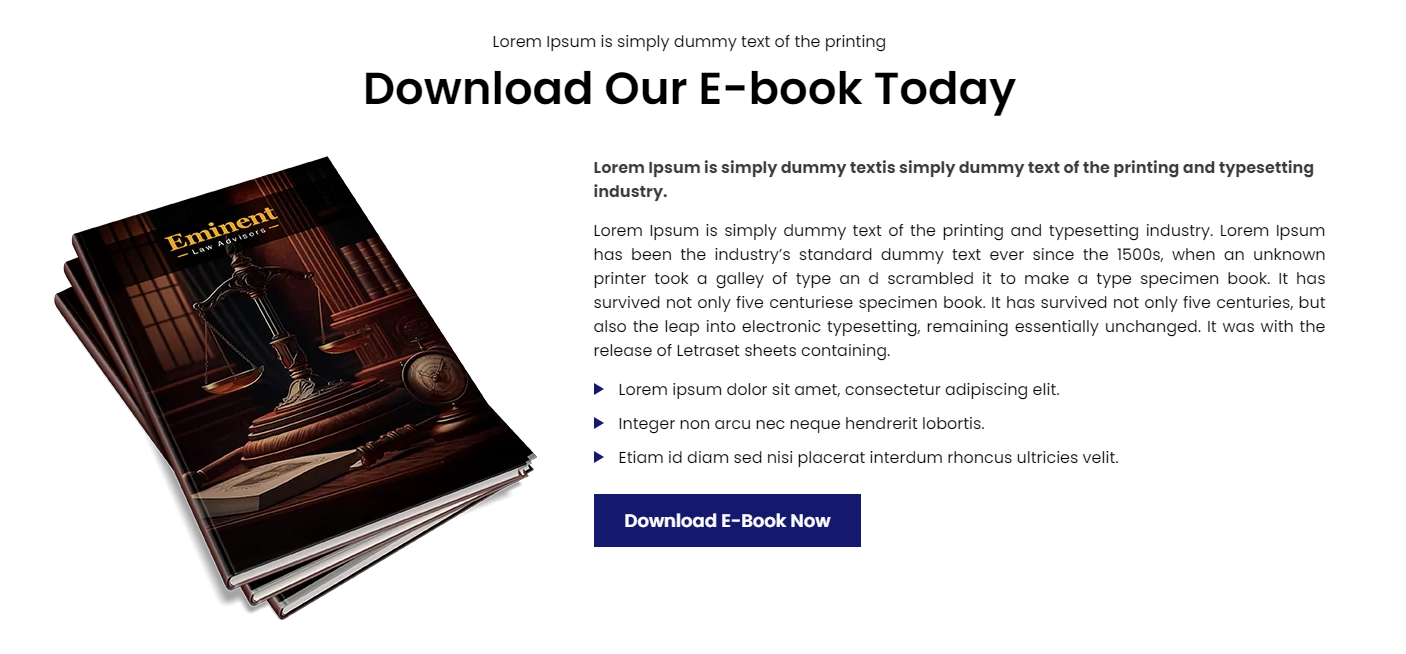
E-Book Section

E-Book Section

The Eminent Law Theme includes a customizable E-Book section, perfect for showcasing digital publications or resources your firm offers. This section allows for various content configurations, including image placement, button actions, and background customization.

Steps to Add the E-Book Section:

1. Add the Custom E-Book Block and Enter Content:

  • From the WordPress dashboard, go to ‘Pages‘ and select the page where you want to add the E-Book section or click ‘Add New’ to create a new page.
  • In the page editor, click the ‘+‘ icon to add a new block, search for the “E-Book” block, and select it.
  • Enter the top heading, main heading, subheading text, and a brief description that introduces the e-book or digital resource.

2. Customize the Book Image and Layout:

  • Book Image Placement: Choose whether to display the book image on the left or right side of the text.
  • Book Image: Upload the cover image of the e-book to be displayed in the section.

3. Configure the Button:

Button Action: Decide the action when the button is clicked:

  • Link: Add a URL that the button will direct users to, such as a purchase or download page.
  • Document: Upload a document that will open directly when the button is clicked.

Select a background color that complements your website’s design and the content of the E-Book section.
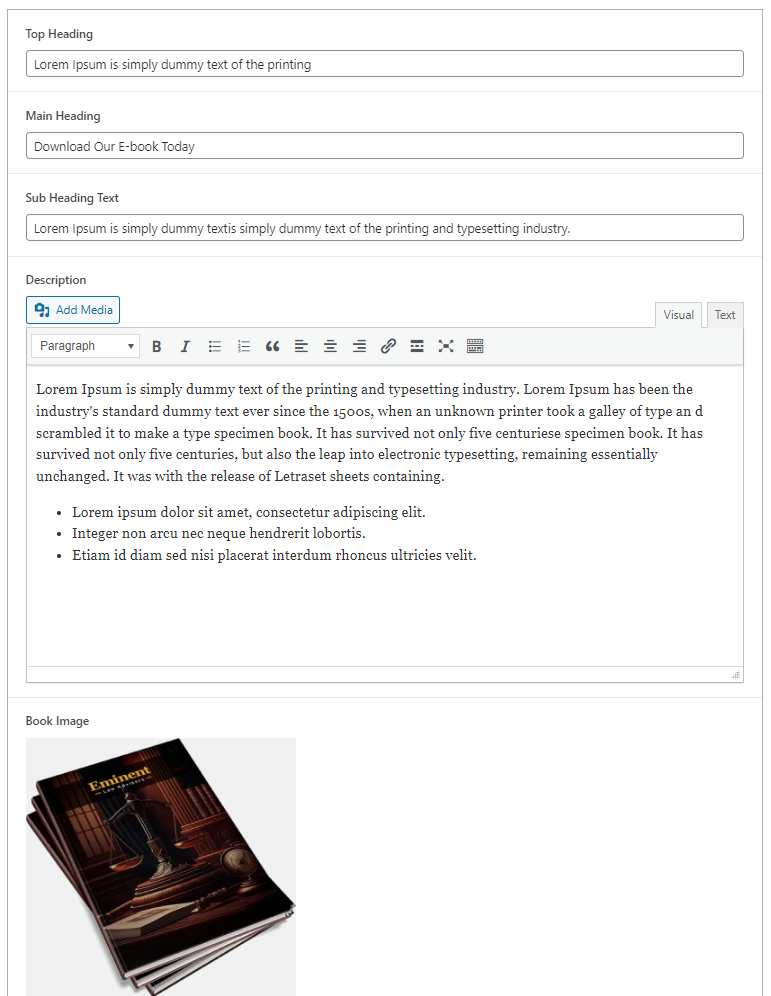
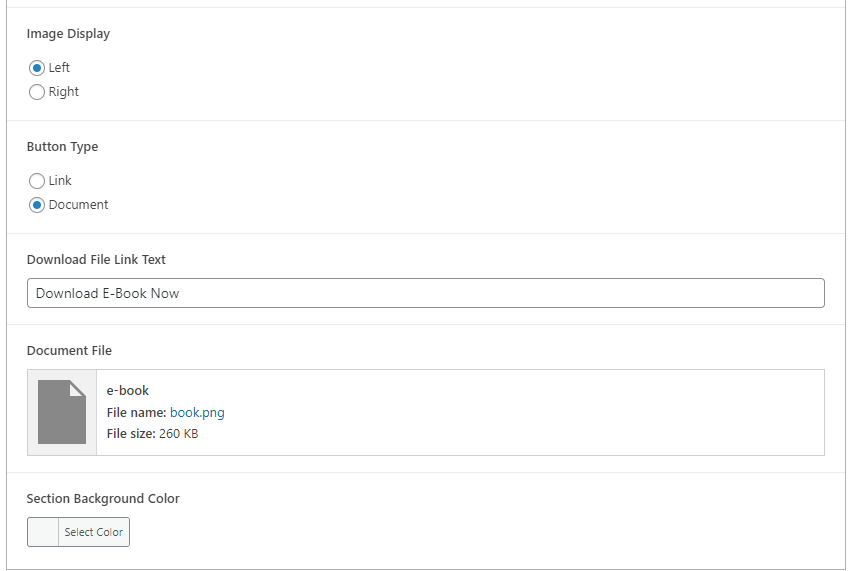
ebook-backend-1
ebook-backend-2

4. Review and Publish:

  • After configuring the E-Book section, review the layout to ensure it effectively showcases the e-book and aligns with your overall site design.
  • Once satisfied, click ‘Publish‘ to make the E-Book section live on your page.
ebook-design

By following these steps, you can effectively use the custom E-Book block to promote your digital resources, offering a professional and engaging way for visitors to access valuable information.

Did this answer your question?