Icon Slider Section

Icon Slider Section

The Eminent Law Theme includes an Icon Slider section, designed to showcase partners or important affiliations in a dynamic and visually appealing way. This section allows you to display icons in a slider format, along with customizable headings and background colors.
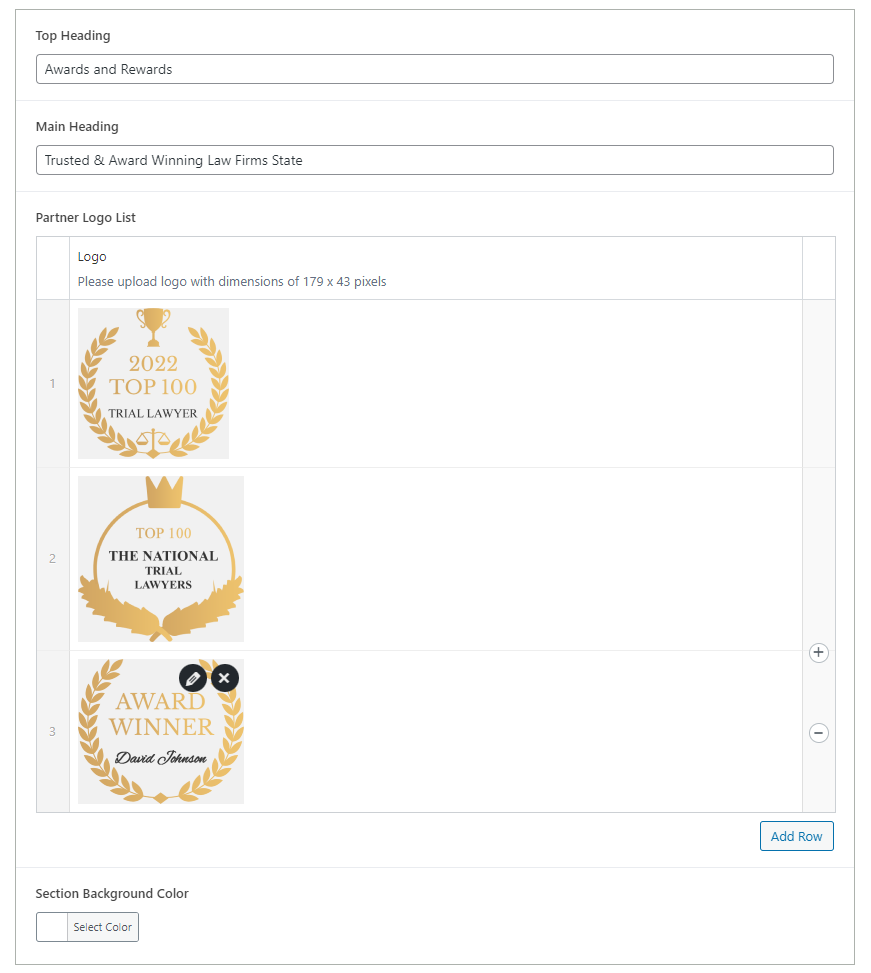

Steps to Add the Icon Slider Section:

1. Add the Custom Icon Slider Block and Enter Content:

  • From the WordPress dashboard, go to ‘Pages‘ and select the page where you want to add the Icon Slider section or click ‘Add New‘ to create a new page.
  • In the page editor, click the ‘+‘ icon to add a new block, search for the “Icon Slider” block, and select it.
  • Enter the Top Heading and Main Heading to provide context and draw attention to the slider.

2. Customize the Icon List:

  • Inside the Icon List, you can add various icons representing your partners or affiliations. These icons will be displayed in a sliding format, creating a dynamic visual element on your page.
  • Choose a background color that complements your website’s design and ensures the icons are visible.
icon-slider-backend

3. Review and Publish:

  • After adding the icons and customizing the headings and background color, review the section to ensure it is visually appealing and functions smoothly.
  • Once satisfied, click ‘Publish‘ to make the Icon Slider section live on your page.
icon-slider-design

By following these steps, you can effectively use the custom Icon Slider block to showcase your firm’s partners or key affiliations, adding a professional and dynamic element to your website.

Did this answer your question?